
Dime Dime Baby Video for TikTok, Reels and Shorts
Prepare a 9:16 Dime Dime Baby AI video for TikTok, Instagram Reels, and YouTube Shorts with framing, duration, caption-safe-area, preview, and download tips.
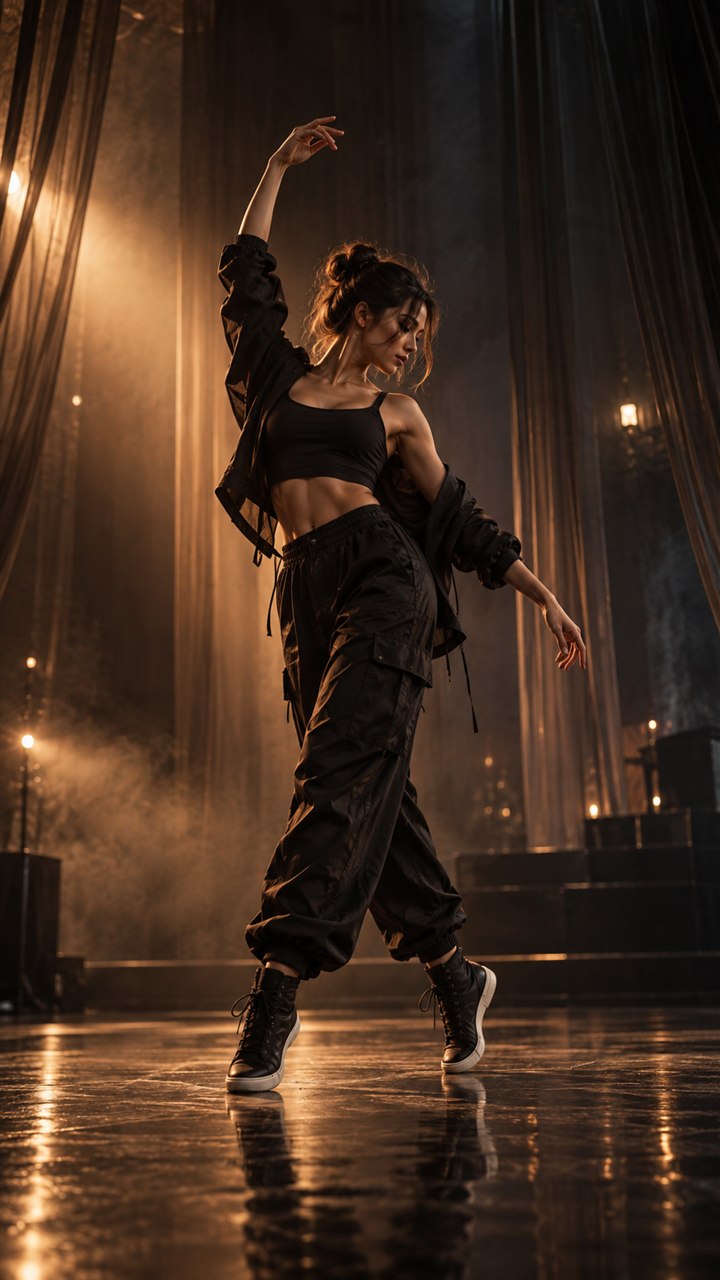
A Dime Dime Baby video fits naturally into the vertical feeds people already use for TikTok, Instagram Reels, and YouTube Shorts. The creation path is simple: start with one clear photo, generate the current 10-second 9:16 MP4, preview the finished clip, and download it. You can then open the social app where you want to post and add that platform's sound, captions, and publishing details.
The few minutes you spend preparing the source photo can make the whole post feel more intentional. This guide walks through full vertical framing, caption-safe areas, duration, preview, and the final platform step without adding unnecessary work to the process.
Plan the vertical frame before you generate
Short-form apps display video vertically, so think about the final 9:16 frame while choosing your photo. A full-body portrait photo is the most direct starting point. Keep the person's head, hands, and feet visible, and leave a little open space around the body. That breathing room helps the subject remain readable when the clip appears on a phone screen with interface elements around it.
A landscape photo can still be considered, but inspect it carefully. If the person is small, partly hidden, or standing close to an edge, a tighter vertical composition may not contain the full body. A clearer portrait alternative is usually the better choice. The Dime Dime Baby photo guide gives a complete checklist for pose, lighting, focus, and background contrast.
Avoid starting with a screenshot that already contains a username, caption, sticker, or app controls. Those elements take up space and may compete with the subject. Use the clean original photo whenever possible, then add the final text inside TikTok, Instagram, or YouTube after downloading the video.
Keep the important action inside a caption-safe area
Every short-form app places controls and text over part of the screen. The exact interface is different on TikTok, Reels, and Shorts, but the practical composition rule is the same: keep the important subject near the central area rather than pressing the face, hands, or feet against the outer edges.
Use these checks before generating:
- Leave space above the head and below the feet.
- Keep the face and main movement away from the far right edge, where viewing controls often appear.
- Avoid placing essential visual details at the very bottom, where a caption or account information may sit.
- Choose a background that separates the entire body from the scene.
- Do not place your planned caption into the source image; add it later in the destination app.
This does not mean the subject must look tiny. Aim for a confident full-body portrait with visible surroundings, not a distant figure and not a crop that cuts through the body. The upload preview shows the complete image vertically, so use it as a last composition check before you continue.
Plan around the current 10-second video
The generator currently creates a 10-second vertical MP4. That compact length works well for a first version or a fast-moving short-form post.
Choose 10 seconds when you want a compact post, a quick first version, or a short visual that reaches its main moment quickly. It is also useful when you plan to add a brief caption and let the image carry the idea.
The generator does not currently offer a 15-second output option. TikTok, Reels, and Shorts can all use the same 10-second 9:16 file. For a pacing comparison, read the 10-second versus 15-second guide.
Create, preview, and download the vertical MP4
Once the photo is ready, the creation flow stays short:
- Open the Dime Dime Baby generator and upload one photo.
- Check the full vertical preview. Replace the photo if any important part of the person is cut off or difficult to see.
- Generate the current 10-second video.
- Watch the finished preview from beginning to end.
- Download the MP4 when the framing and movement fit your post.
During the finished preview, look at the video as a viewer would see it on a phone. Check whether the subject is clear immediately, whether the full body remains readable, and whether the main action stays away from likely caption and interface areas. If the composition feels cramped, returning to a photo with more space is more useful than trying to hide the crop with a large caption.
If this is your first time using the generator, the one-photo creation tutorial explains the complete workflow. The pricing page lists the current one-time video packs when you are planning one post or several variations.
Finish the post inside TikTok, Reels, or Shorts
The downloaded file is the visual starting point for your social post. Open TikTok, Instagram, or YouTube, create a new post, and select the MP4 from your device. Then use that app's own publishing tools to choose the sound, add captions, write the post text, select a cover, and review the result.
TikTok
Import the downloaded clip, then select the sound and text treatment inside TikTok. Preview the post with the interface visible. If a caption covers the subject, shorten it or move editable text toward a clearer part of the frame.
Instagram Reels
Add the video as a Reel, choose the audio you want in Instagram, and check the cover selection. A clear cover that shows the subject at a readable size makes the post easier to recognize on a profile grid.
YouTube Shorts
Select the vertical MP4 when creating a Short, then add the sound, title, and any captions in YouTube. Watch the final preview once more before publishing, especially the top and bottom of the vertical frame.
Using one clean downloaded file also makes it easier to prepare separate versions for each app. You can give every post its own sound, caption, cover, and description instead of baking platform-specific elements into the original photo.
A quick pre-post checklist
Before you finish the upload in any platform, confirm that:
- The clip is the intended 10-second version.
- The video fills a vertical 9:16 frame.
- The face and full-body action are easy to see.
- Captions and interface controls do not cover the main subject.
- The selected sound starts at the moment you want.
- The cover frame still looks clear at a small size.
- The post text is short enough to support the visual rather than explain it.
Frequently asked questions
Is the downloaded Dime Dime Baby video vertical?
Yes. The finished download is a 9:16 MP4 designed for vertical viewing.
How long is the video for a short-form post?
The generator currently creates a 10-second vertical video for short-form posts.
Does the download include platform audio?
Add the sound you want inside TikTok, Instagram, or YouTube after downloading the video.
Prepare your first vertical post
Choose one full-body photo with enough space around the subject and inspect it in the vertical generator preview. After the 10-second video is ready, download it and finish the sound, captions, cover, and post details inside TikTok, Instagram, or YouTube.
Keep exploring
Related Dime Dime Baby guides
How to Make a Dime Dime Baby AI Video in 3 Steps
Make a 10-second Dime Dime Baby AI dance video from one photo in three clear steps, with practical photo and sharing tips.
Read articleFormat guide10 vs 15 Seconds: Current Dime Dime Baby Video Length
The generator currently creates a 10-second Dime Dime Baby AI video; learn how that length compares with a 15-second short-form clip.
Read articlePhoto guideBest Photo for a Dime Dime Baby AI Dance Video
Choose the best photo for a Dime Dime Baby AI dance video with practical guidance on full-body framing, lighting, pose, background, and common fixes.
Read articlePut the guide into practice
Make your Dime Dime Baby video.
Upload one photo to create a 10-second video. Sign in only when you are ready to generate.