
Dime Dime Baby CapCut Template vs AI Generator
Compare a Dime Dime Baby CapCut template with a one-photo AI generator by setup, creative control, output, and the fastest path to a finished video.
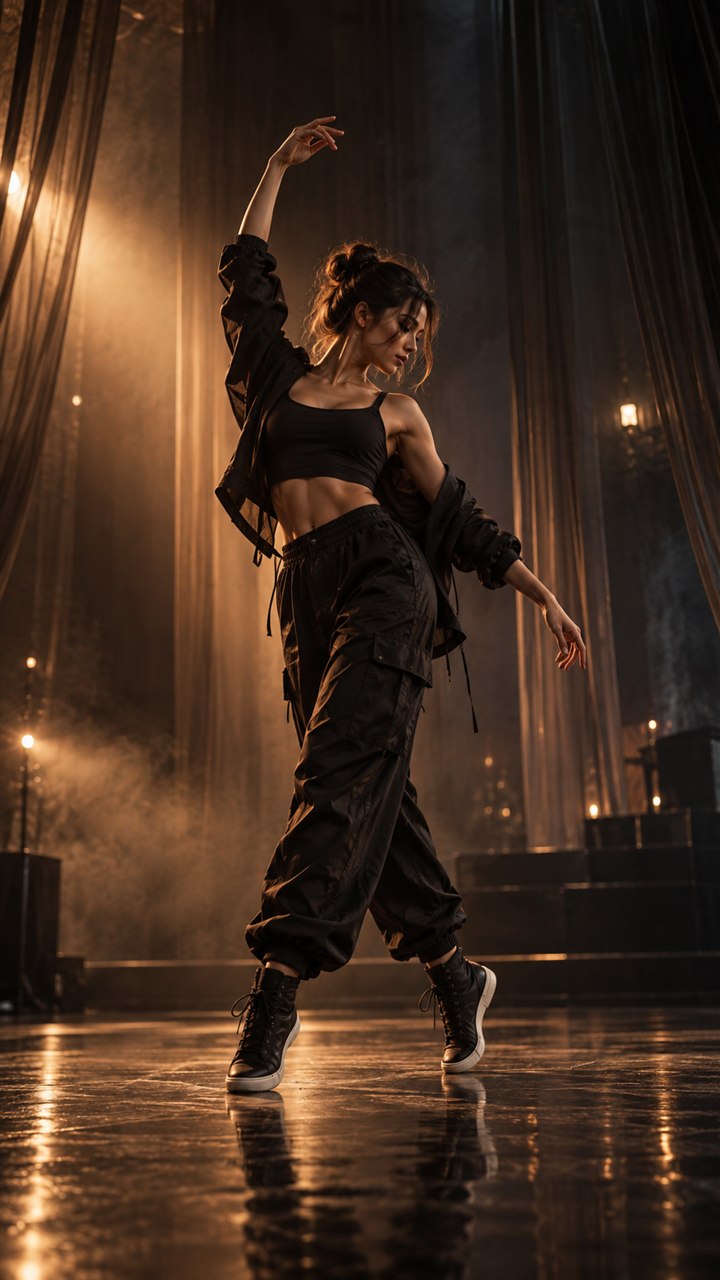
A Dime Dime Baby CapCut template and a one-photo AI generator can both help you join the same visual trend, but they do different jobs. One edits media you already have. The other creates moving footage from a still picture.
The right choice becomes clear when you compare your starting material, the amount of control you want, and how quickly you need a finished vertical video.
The short answer
Choose a one-photo AI generator when you have a portrait and want that subject to perform the prepared dance without recording new footage.
Choose a CapCut template when you already have photos or video clips and want to arrange them with manual timing, text, transitions, and audio.
If your goal is specifically “make this one photo dance,” you can go directly to the Dime Dime Baby AI generator.
Side-by-side comparison
| Question | One-photo AI generator | CapCut template |
|---|---|---|
| Starting material | One clear still photo | Existing photos or video clips |
| Main job | Creates new movement | Edits and arranges supplied media |
| Setup | Upload and generate 10-second video | Import media, fit placeholders, adjust edit |
| Creative control | Focused choices | More manual timeline controls |
| Best for | Making a still subject dance | Building a customized multi-clip edit |
| Learning curve | Short | Depends on the complexity of the edit |
This is not a quality ranking. It is a workflow comparison. A highly customized edit may justify more steps, while a single-photo idea benefits from a shorter path.
When a Dime Dime Baby AI generator fits better
You only have one good photo
A template cannot invent the subject performing a new full-body dance from a portrait. A photo-to-video generator is built for that transformation.
You want fewer decisions
The dance, vertical output, and basic flow are already set. You choose the source photo and create the current 10-second video. That makes the path easier to complete on a phone.
You want to preview the generated movement first
Create the core dance clip, download it, and then decide whether it needs a caption, platform audio, or a final trim. Generation and finishing can be two separate steps.
When a CapCut template fits better
You already recorded video
If you have several clips of friends, outfits, locations, or reactions, a timeline editor lets you place them deliberately.
You need exact manual timing
Templates are useful when you want to shift cuts, change text, add overlays, select transitions, or align specific existing footage with audio beats.
You want a broader edit around the generated clip
The options are not mutually exclusive. You can create the dance in the generator, download it, and use an editor for titles, sound, or a multi-scene introduction.
What about a TikTok or camera filter?
A filter usually changes a live or recorded camera view. A template edits supplied media. A photo-to-video generator creates a new motion sequence from a still image. Searching for “Dime Dime Baby filter,” “Bby Wow template,” and “Dime Dime Baby AI” can therefore lead to different creation experiences.
Before selecting a tool, look at the input it requests. If it asks for one photo and produces a new video, it is serving a different job from a filter or edit template.
A practical decision tree
Ask these questions in order:
- Do I want the person in a still photo to perform the dance? Use the AI generator.
- Do I already have video clips I want to cut together? Use a video editor or template.
- Do I want both? Generate the dance first, then finish the post in an editor.
- Am I making several versions from different photos? A focused generator reduces setup between versions.
- Do I need detailed text and audio timing? Plan a second editing step after generation.
Compare the complete cost, not only the app label
“Free template” and “paid generator” do not always describe the full project. Consider the time needed to record or source footage, the number of versions you want, and whether a tool adds a subscription you do not need.
This site lists one-time packs clearly: 1 video for $2.99, 3 for $6.99, or 10 for $18.99. Each current 10-second generation uses one video. Review the current details on the pricing page before checkout.
Frequently asked questions
Is a CapCut template the same as a one-photo AI generator?
No. A template is an editing layout for supplied media, while a photo-to-video generator creates new motion from one still image.
Which option is faster for one portrait?
If you already have one suitable photo and want the dance motion prepared for you, the generator has the shorter setup.
When is CapCut the better choice?
CapCut is useful when you want hands-on timeline editing, several source clips, text layers, or manual beat-by-beat changes.
Choose the workflow that matches your idea
Use the generator for the shortest one-photo path, or inspect the one-time pricing first. For more context, read the Bby Wow versus Dime Dime Baby guide and the Dime Dime Baby AI alternatives checklist.
Keep exploring
Related Dime Dime Baby guides
Bby Wow AI vs Dime Dime Baby: What Is the Difference?
Learn how Bby Wow AI relates to Dime Dime Baby, what a one-photo dance generator does, and how filters, templates, and photo-to-video tools differ.
Read articleBuyer guideHow to Compare Dime Dime Baby AI Alternatives
Learn how to compare Dime Dime Baby AI alternatives by input, duration, mobile flow, output format, price clarity, and the path to a finished video.
Read articleHow-toHow to Make a Dime Dime Baby AI Video in 3 Steps
Make a 10-second Dime Dime Baby AI dance video from one photo in three clear steps, with practical photo and sharing tips.
Read articlePut the guide into practice
Make your Dime Dime Baby video.
Upload one photo to create a 10-second video. Sign in only when you are ready to generate.